Day
Day
The Day Map for one day at a time. Log values, swipe between days, filter by category, rearrange the map.
This guide walks through the whole app in the order you will meet it: your first action, the Day Map, reminders, reports, the AI Routine Coach, sharing with family, settings and plans. Skim the quick start, then dip into any topic when you need it.
 Quick start: about 3 minutes
 19 short topics
Matches the current iOS and Android app
19 short topics
Matches the current iOS and Android app
You can start without signing in with Google or Apple or choosing a paid plan. Open the app, add an action and log your first entry. The rest of this guide builds on that simple routine.
Five short slides introduce the app. On the last one you can Continue with Google, Continue with Apple, or just Continue as a New Smith for now. That gives you an anonymous account so you can try everything immediately.
On the  Day tab, tap
  Action. The
fastest route is
Action. The
fastest route is  Choose from a template: pick something like
Water, Steps, Take medication or Blood pressure and Dayvil fills in the icon, category,
units and targets. Adjust what you like and save.
Choose from a template: pick something like
Water, Steps, Take medication or Blood pressure and Dayvil fills in the icon, category,
units and targets. Adjust what you like and save.
Single Check · Good to do · Every day · Track from today · one reminder at 18:00
Your action now appears as a cell on the Day Map. Tap it to open the entry panel at the bottom of the screen. Enter today's value, then tap Save. The cell's colour reflects your entry. The next sections explain what the colours mean.

Small hint cards appear the first few times something new matters, for example
"Tap the map to log an action" or "Swipe between days". Each shows at most three
times. You can bring them all back with  Show hints again in Settings.
Dayvil has four tabs along the bottom and a compact header at the top. Almost everything you do daily happens on the first tab.
Day
The Day Map for one day at a time. Log values, swipe between days, filter by category, rearrange the map.
Actions
The list of everything you track. Create, edit, pause and delete actions here, and see which ones are paused or need review.
 Reports
Streaks, your day score over time, per-action statistics and the AI Routine Coach.
 Sharing
Share your Dayvil with someone you trust, or join theirs. Switch into a shared Dayvil to help, then switch back.
Dayvil creates an anonymous account the moment you finish the intro, so you can try everything without giving an email. It is a real account and your data is saved, but your access is initially tied to this phone. Until you pick a name, the app calls you "New Smith".

Before you reinstall, switch phones, or share your Dayvil with someone. An anonymous account cannot be recovered if the phone is lost, so link it early to keep access to your entries.
Instead of a checklist, Dayvil draws every action scheduled for the day as a cell on a map. Two things carry meaning: colour and size.
Tap any cell. An entry panel opens at the bottom of the screen with the control for that action type: a big check and a cross, checklist steps to tick, checkpoint slots (Morning, Midday, Afternoon, Evening, Night), a number wheel, or a time wheel. Saving closes the entry panel immediately.
 gear in the entry panel opens the action settings: schedule, targets, reminders.
Swipe left or right across the map. There are no arrows: the swipe is the only way to move between days, and the header shows where you are, for example "2 days ago". Past days are editable, and the first time you change one Dayvil asks to confirm, because it may change your reports and streaks. You can tick "don't ask again". Future days are visible for planning but locked.
 Map opens map controls. Filter by category
shows only actions in that category. A label on the map shows the active filter; tap it to remove the filter.
Edit map opens the map editor. To move a cell, press and hold it until it turns blue, then drag it to a new position. To enlarge a cell, spread two fingers inside it; bring them together to shrink it. You don't need to press and hold before resizing. When you are happy with the layout, tap
Map opens map controls. Filter by category
shows only actions in that category. A label on the map shows the active filter; tap it to remove the filter.
Edit map opens the map editor. To move a cell, press and hold it until it turns blue, then drag it to a new position. To enlarge a cell, spread two fingers inside it; bring them together to shrink it. You don't need to press and hold before resizing. When you are happy with the layout, tap
 Save.
Save.
 Reset layout puts positions, sizes or both back to default.
You need at least two visible actions to edit the map.
Reset layout puts positions, sizes or both back to default.
You need at least two visible actions to edit the map.
When every action on today's map is complete and the streak ring fills, Dayvil celebrates with confetti. The celebration does not change your data.
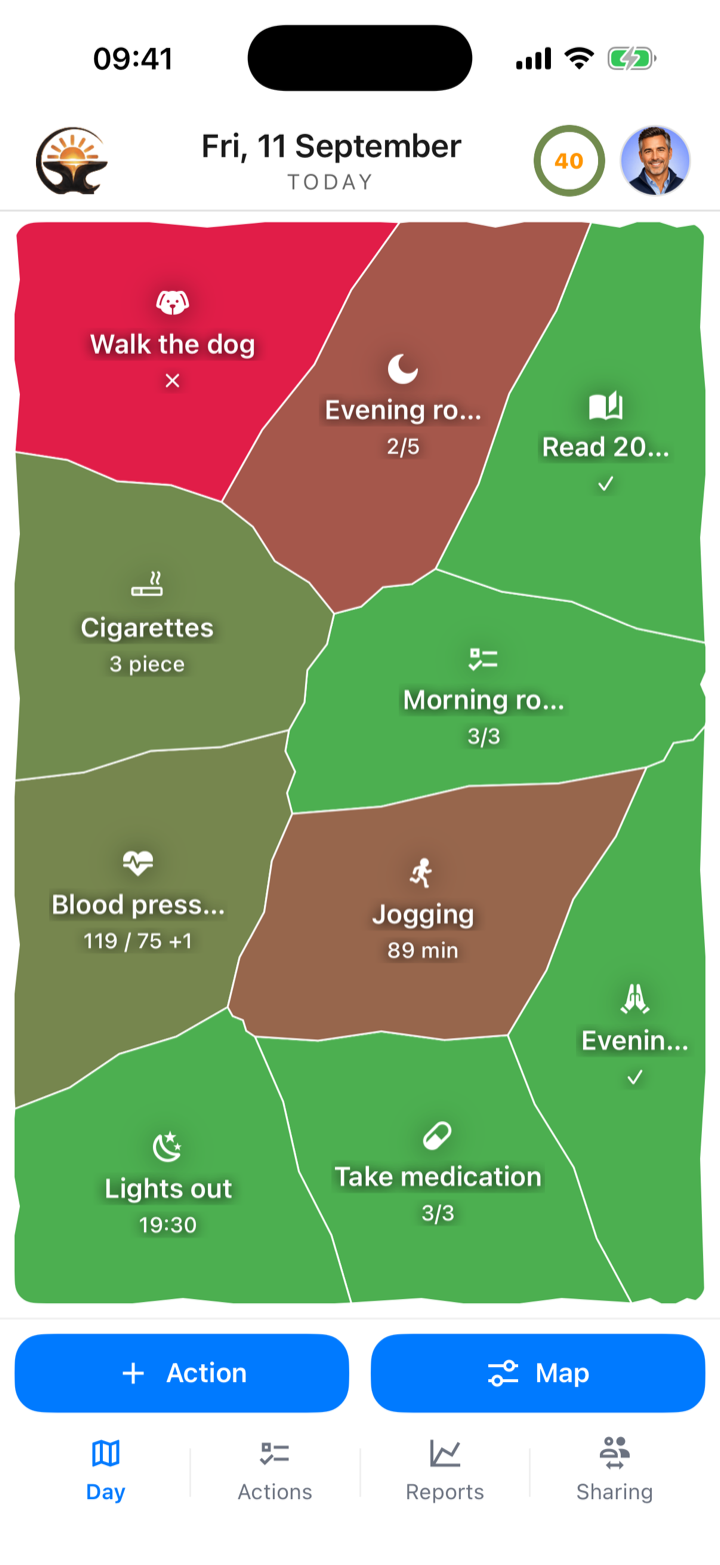
Dayvil keeps "not logged yet" separate from "failed". Forgetting to track and logging zero are different truths, and the map shows the difference. Every action lands in one of four states, and those states feed the day score you see in Reports.
Nothing logged yet. Not counted for or against you. A "do less" habit like cigarettes stays unknown until you confirm a value, even zero.
On target: checked, all steps done, the number inside its target zone, the time hit.
Partly there: 3 of 5 steps, two of three checkpoints, a value near the edge of its zone. Mid is not one fixed colour: the cell blends between your good and bad colours in proportion to how far along it is, so 4 of 5 steps looks greener than 1 of 5.
Missed or clearly off target.
A check-off action on a day that is over and was never logged, counted as not done for that day.
The three base colours (positive, negative, unknown) are yours to change in Settings, including colour-blind friendly choices. The gradient between them is what a cell shows.
"Action" is Dayvil's one word for anything you track, whether you want more of it or less of it. Each type has its own logging control and its own way of turning a value into a colour.
 Single Check
Done or not done. One tap for yes, one for no.
Checklist
Tick off a few steps in one go. The colour reflects how many steps are done.
 Checkpoints
Check in at set points across the day. Each slot can have its own reminder time.
 Metric
Log a number toward a goal, counting up or down. One action can hold several measures, each with its own unit and target zone.
Time
Hit a target time of day. One or more time windows, each scored by how close you were.
Every action has a direction. For a check-off action it is "Good to do" or "Better to avoid". For a metric it is "Higher is better" or "Lower is better". For a time it is "Earlier is better" or "Later is better". Dayvil flips the colour gradient to match, so zero cigarettes is green and a late bedtime is red.
Single Check Good to do or
  Better to avoid.ChecklistGood to do or Better to avoid.CheckpointsGood to do or Better to avoid.Metric
 Higher is better or
  Lower is better and check the colour preview.Time
 Earlier is better or
  Later is better.
Tap Action on the Day tab or the add button on the Actions tab.
The selection panel offers Choose from a template at the top and the five
types below it.
Around fifty ready-made actions in seven groups: Health, Fitness, Nutrition, Mindfulness and wellbeing, Productivity and learning, Sleep, and Personal and home. Many have variants. Blood pressure, for example, comes as Standard, With pulse, Morning + evening, or With MAP. A template only pre-fills the form. Everything stays editable, and units such as km/mi or kg/lb follow your measurement system.
Choose an action type without using a template, then enter a name. Dayvil picks a matching icon and, if you allow AI suggestions, a category, the direction (good/avoid or higher/lower) and, for a metric, a sensible unit and target zone. The first time, a short consent dialog explains what is sent. If you decline, you can still fill in every field yourself. Autofill only runs on new actions, never when editing or when a template already chose the values.
Reminders are local notifications at the times you set, on the days the action is scheduled. They are meant as a tap on the shoulder, not a stream of noise.
On holiday, injured, or just not ready? Pause instead of deleting. A paused action leaves today's and future maps, its reminders stop, and past days keep their record.
 Paused — needs review card appears at the bottom of the Day Map.
Tap it and choose Resume, Snooze or
Paused — needs review card appears at the bottom of the Day Map.
Tap it and choose Resume, Snooze or
 Delete for each action. Nothing silently disappears.
The Reports tab has four sub-tabs: Streaks,
Score, Actions and
Coach. The charts offer 30- and 90-day windows, and "All" reaches back up to 365 days.
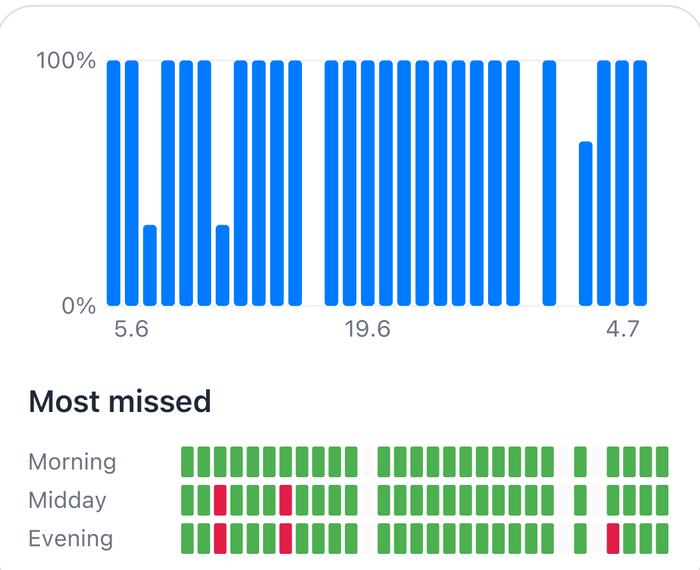
Your current streak, best streak and recovery rate, plus a completion heatmap of the month. The streak is forgiving: logging anything keeps your streak alive. It counts showing up, not perfect days. The month grid underneath gets its own section.
Your average day score, its trend over 7, 30 or 90 days, and how your statuses split between Good, Mid, Bad and Unknown. The day score weights each action by its importance and excludes Unknown values. Unknown values do not lower your score. On past days, unlogged check-off actions can count as not done.
A leaderboard of every action, best to worst. Tap any row to open that action's own statistics screen, covered in the next section.
The AI Routine Coach, covered in its own section.

If you forgot to log yesterday, swipe back on the Day Map and fill it in. Dayvil shows a "Save your streak" hint in exactly that situation.
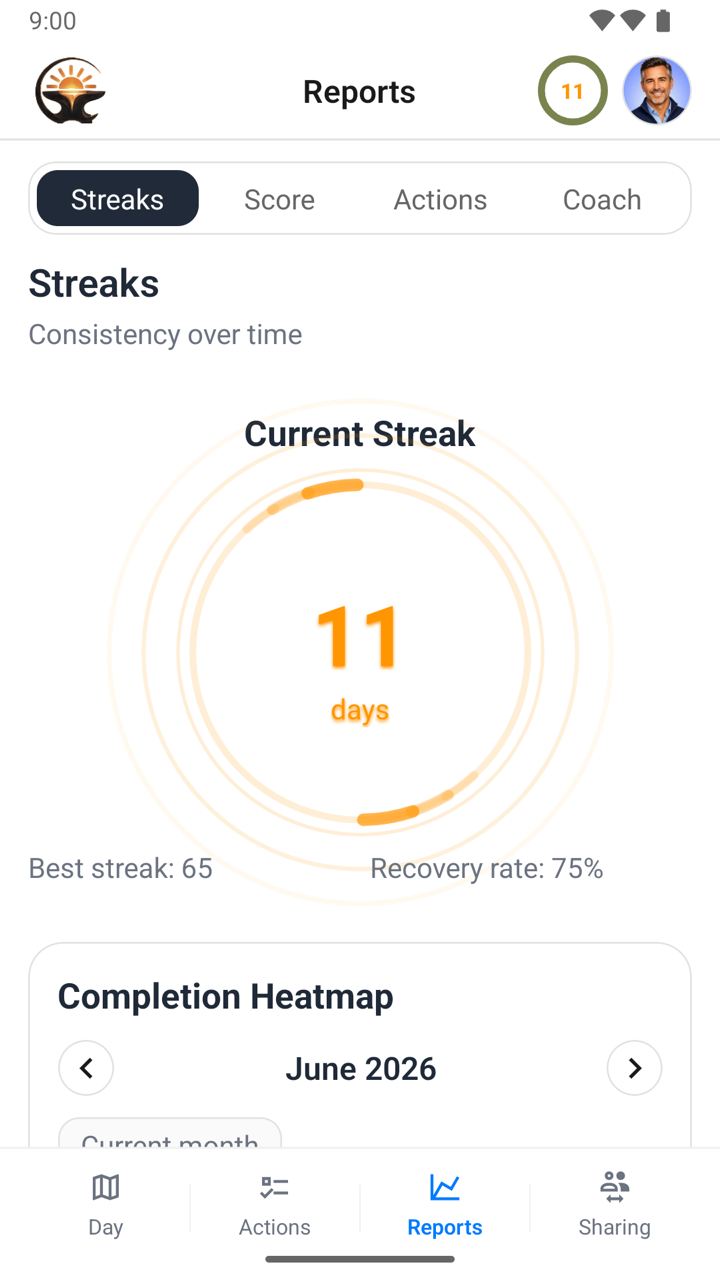
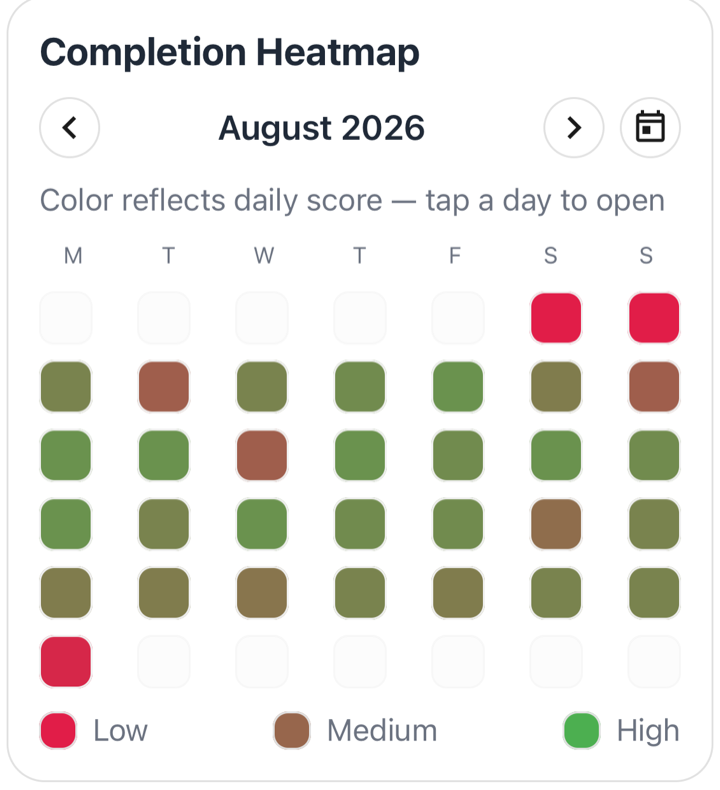
Under the streak ring on the Streaks tab sits a calendar grid, one cell per day. Where the streak only asks whether you showed up, the heatmap asks how the day went: each cell takes the colour of that day's score, from red for a low day through brown for a middling one to green for a strong one. Read a whole month in one look and the pattern is usually obvious: a red weekend, a green working week, a brown stretch when something was slipping.

A day can keep your streak alive and still be red here. The streak counts consistency; the heatmap shows your daily score. Together, they show how regularly you log and how your results change over time.
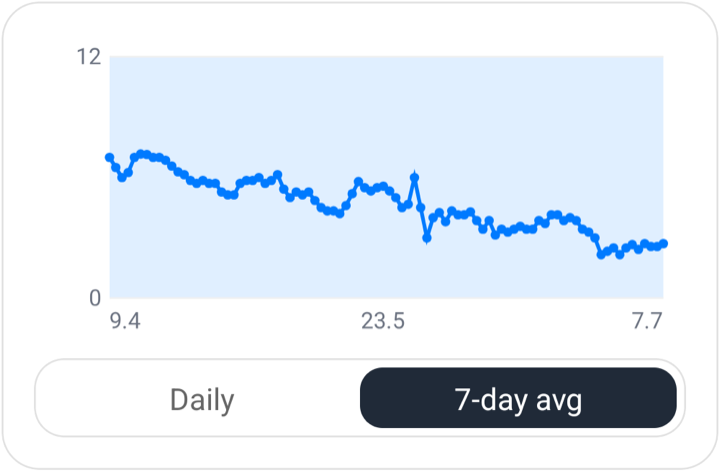
The reports above summarise your whole routine. This screen does the opposite: it
takes one action and shows what it has actually been doing. Open it from
Reports
→ Actions by tapping a row, or from the footer of the action
editor. Pick a window of 30 days, 90 days
or All at the top.
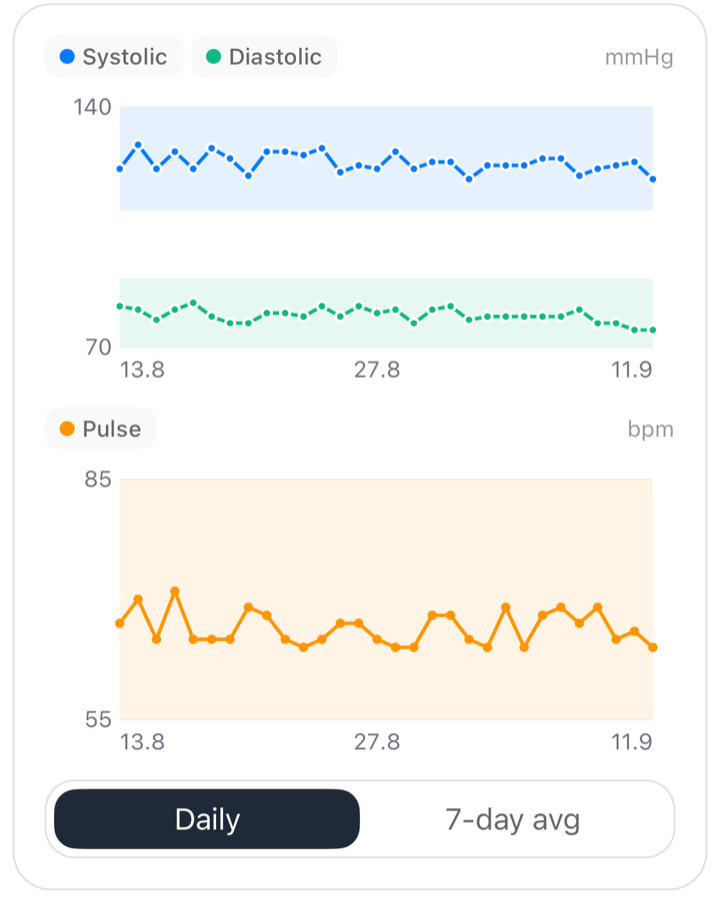
Dayvil does not draw the same chart for everything. Each action type gets a chart suited to the values it tracks.
Actions with several measures show every measure in their charts. Measures with the same unit and a comparable range share a chart and colour key. This lets you compare systolic and diastolic blood pressure directly. Measures on a different scale get a separate chart below, such as pulse beneath blood pressure. The summary has one column per measure. Time actions with multiple windows share one chart because they all use the same time-of-day axis.
To explore an unusual value, tap the chart. Dayvil selects the day nearest your touch and shows a card below with its date and values, for example Fri, 5 Sep · 128 / 82 mmHg. The card carries an Open day link that takes you to that day on the Day Map.
In a 90-day chart, columns are only a few pixels apart and can be hard to select precisely. The first tap selects a day. Only the link opens its Day Map, so an accidental tap does not take you away from the chart. The heatmap on the Streaks tab jumps in a single tap, because its day cells are big enough to hit.
A day you never logged leaves a break in the line, and the summary ignores it entirely. It is never drawn as zero. Forgetting to log your cigarettes is not the same as smoking none, and the chart keeps that distinction.
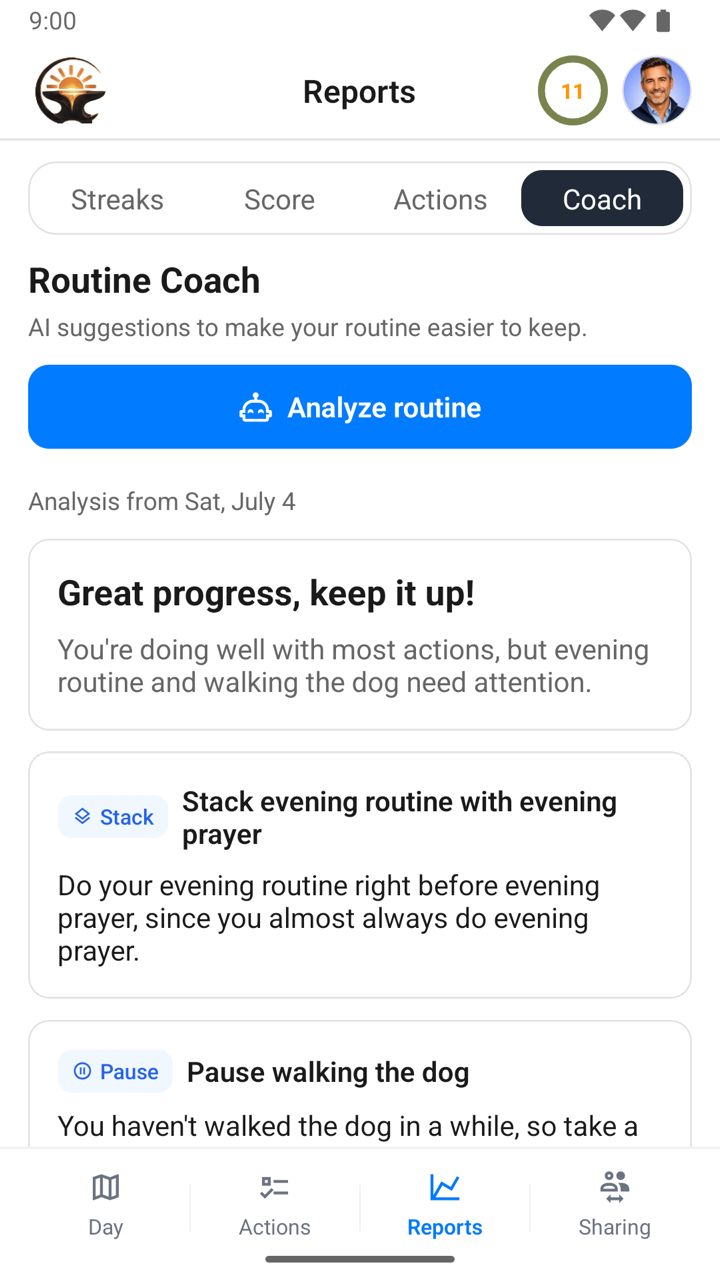
The coach reads a summary of your routine, spots patterns, and suggests small
changes that make it easier to keep. Open Reports → Coach and tap
Analyze routine.
Refresh analysis and stays greyed out while your data is unchanged, with the note "Nothing new to analyze since your last report." Log a day, backfill one, or edit an action, and it comes back. This applies on every plan, so an unchanged tap never costs you a credit.
The app computes all statistics on your phone and sends only a compact summary to the AI, processed on servers in the European Union. Your individual daily entries are not sent to the AI, and the summary is never used for advertising or to train AI models. Every report closes with the same reminder: it is AI-generated, it can be wrong, and it is not medical advice. Full detail is in the privacy policy.
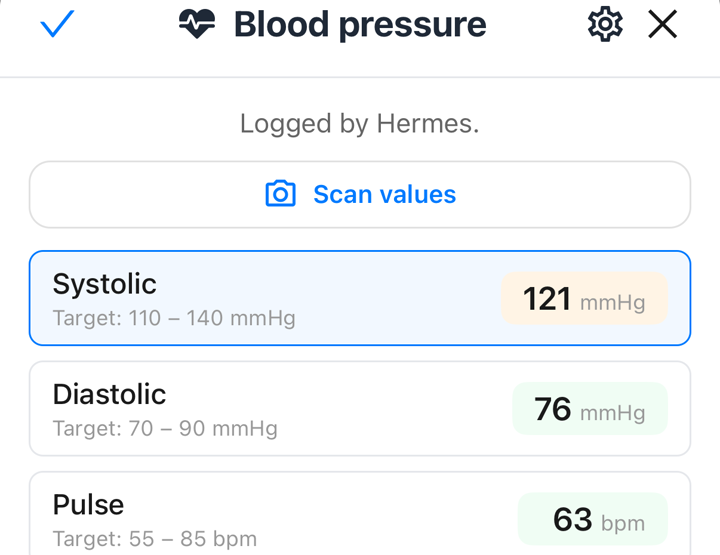
Logging a blood-pressure reading or a weight by hand is fiddly. In the entry panel of
a metric action, tap  Scan values, point the camera at the monitor
or scale, and Dayvil reads the numbers into the fields.
Scan values, point the camera at the monitor
or scale, and Dayvil reads the numbers into the fields.
Share your Dayvil so a parent can follow a child's routine, or an adult child can check in on a grandparent's medication. The other person sees (or edits) your map, actions and reports, and can switch back to their own Dayvil at any time.
 Share
ShareDayvil first checks the name others will see. Change it in Profile, sign in with Google or Apple, or continue as you are.
 View only lets them see your data.
  Can edit lets them log and change things for you.
The other person opens Sharing on their phone, taps  Join and scans it. You accept, and the two Dayvils are connected.
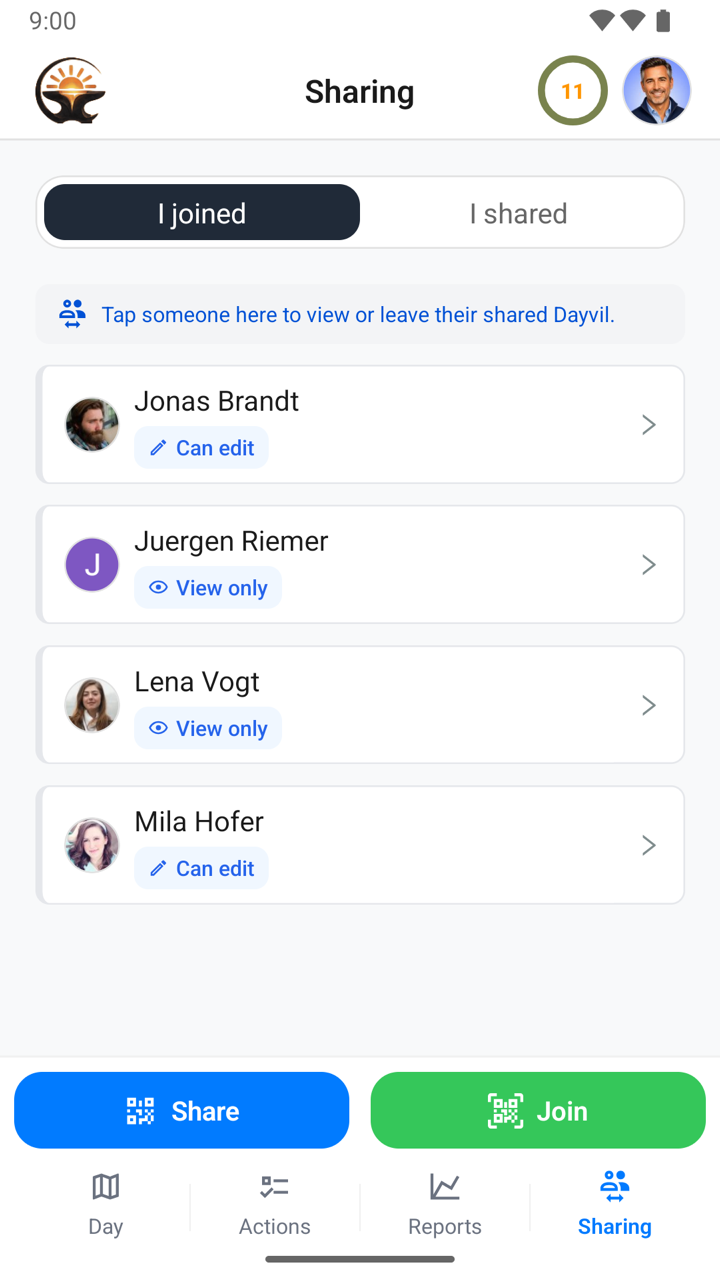
The I joined segment lists the people who shared with you. Tap one to switch into their Dayvil. While you are there, the header shows that person's avatar instead of yours, so it is always clear whose day you are looking at, and your own menu is locked to browse-only. Tap the avatar and choose Switch to me to get back to your own. Leave removes your access.
The I shared segment lists people you invited. Tap one to change their access or remove them. Your colour settings are personal and never shared.

You can share your own Dayvil with as many people as you like on any plan. The number of Dayvils you can join depends on your plan: 1 on Free, 5 on Plus, 20 on Pro.
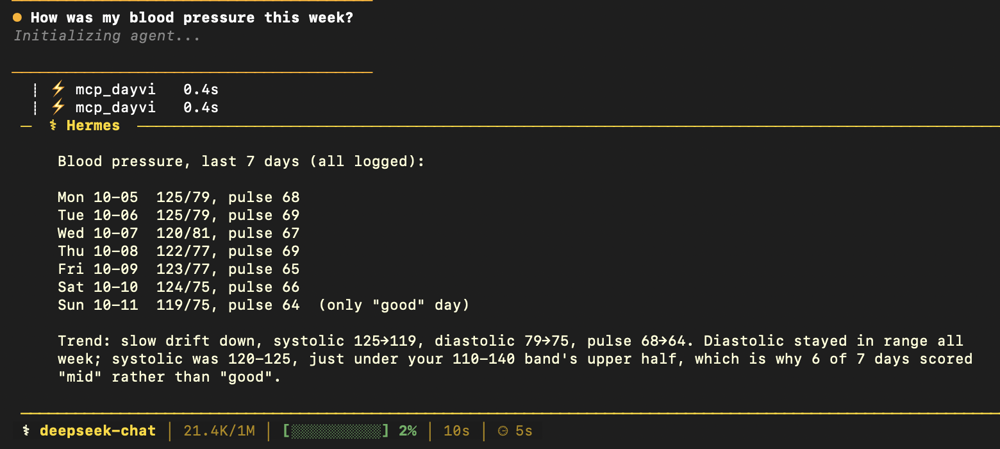
Dayvil speaks the Model Context Protocol (MCP), the open standard AI agents use to
reach tools. If you already use an agent such as Claude, Hermes Agent or OpenClaw, or
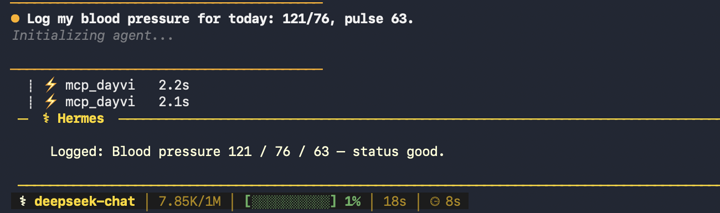
run your own script, you can let it read your Dayvil and, on Plus or Pro, log entries
for you. Then ask “how did my week go, and did my walks line up with my blood
pressure?” in the chat you already use. Nothing is installed on your phone: your agent
connects to mcp.dayvil.com.
 Connected agents
Avatar menu → Settings → Connected agents, then tap New access. Connected agents needs a connection.
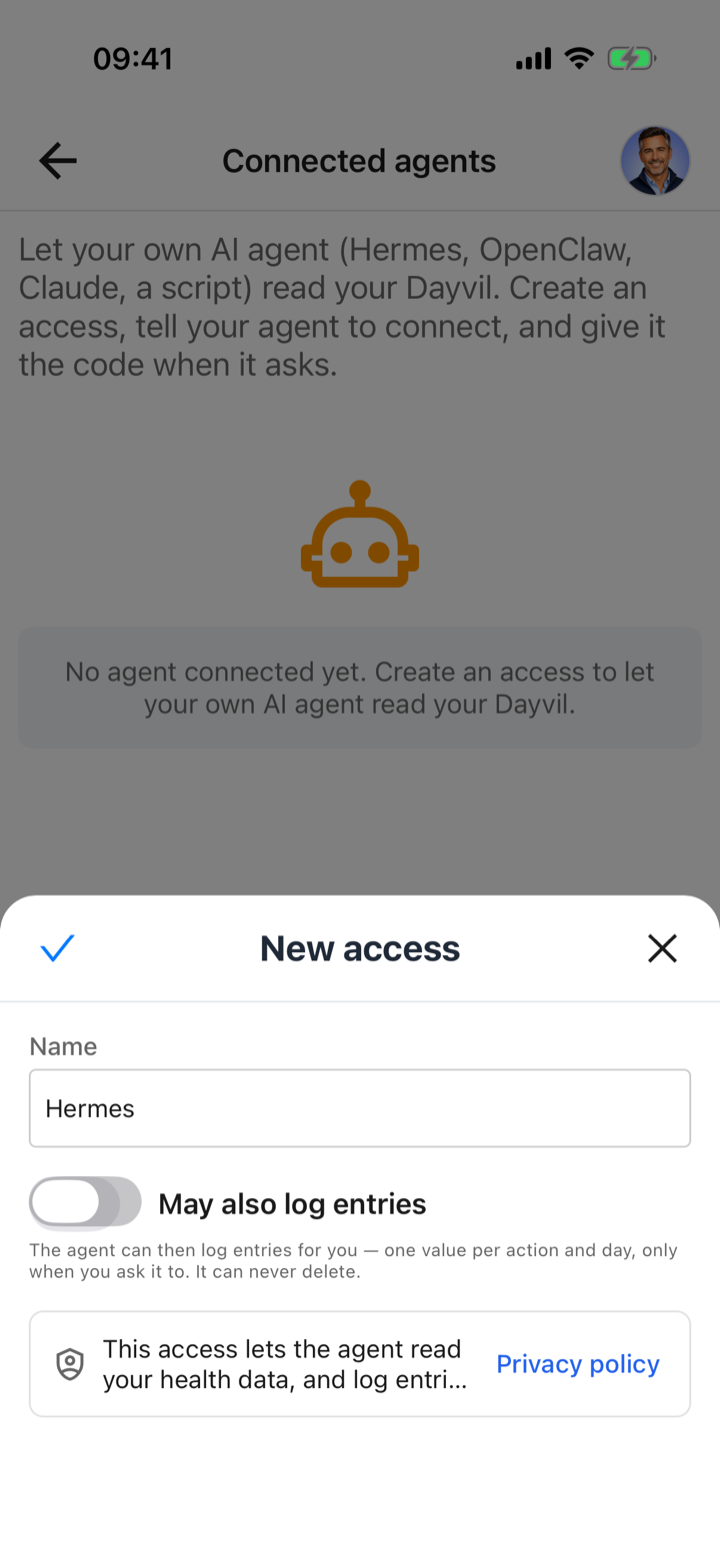
Name the access after the agent, for example “Hermes Mac mini”. Leave May also log entries off for read-only access, or switch it on to let the agent log entries for you (Plus and Pro).
The access lets the agent read your health data. You choose and run the agent, so what it stores or passes on is between you and its provider. Tap Save to go ahead.
“Connect to mcp.dayvil.com”. Copy instruction puts it on your clipboard. That address gives your agent the whole procedure, so there is no path or setting to read out.
Your agent shows a QR code in its chat, or as text characters in a terminal, which scan just as well. Tap Scan QR and point the camera at it.
Dayvil shows Agent connected. Your agent received its key directly and keeps it in its own configuration, with nothing to copy. Ask it to call list_actions: if it names your habits, you are set.
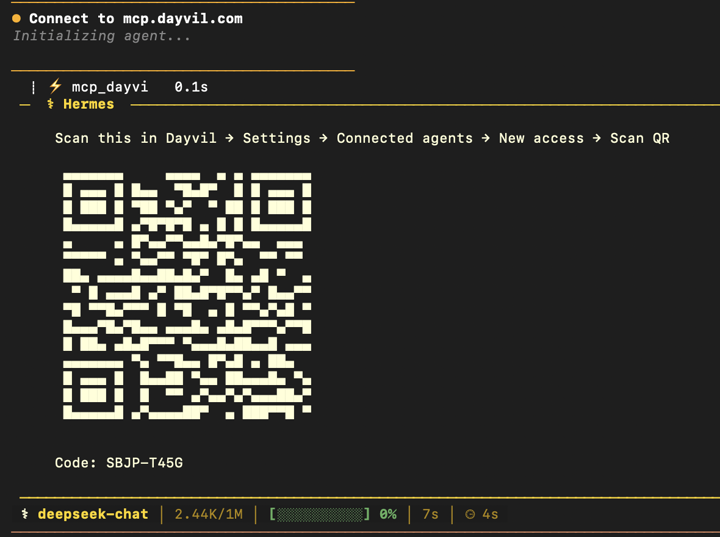
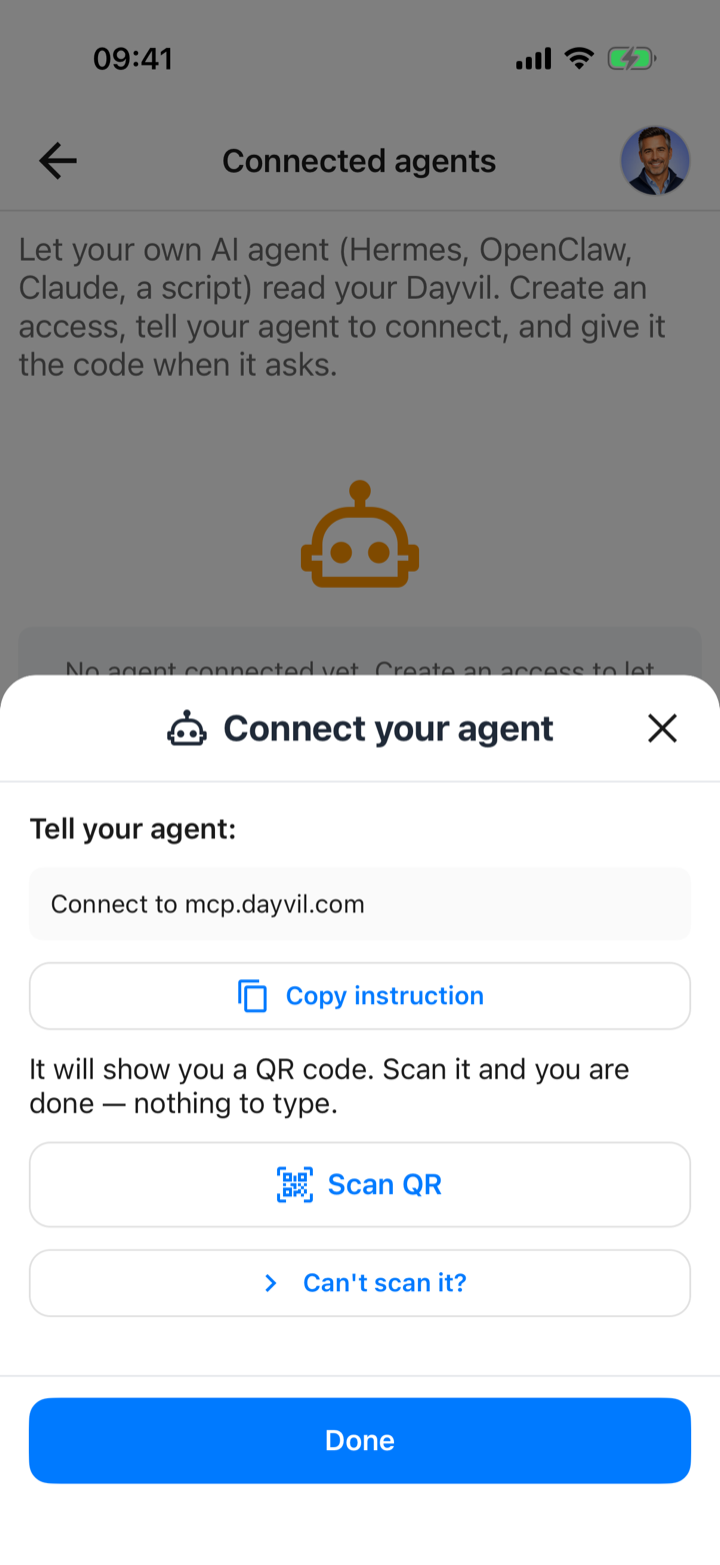
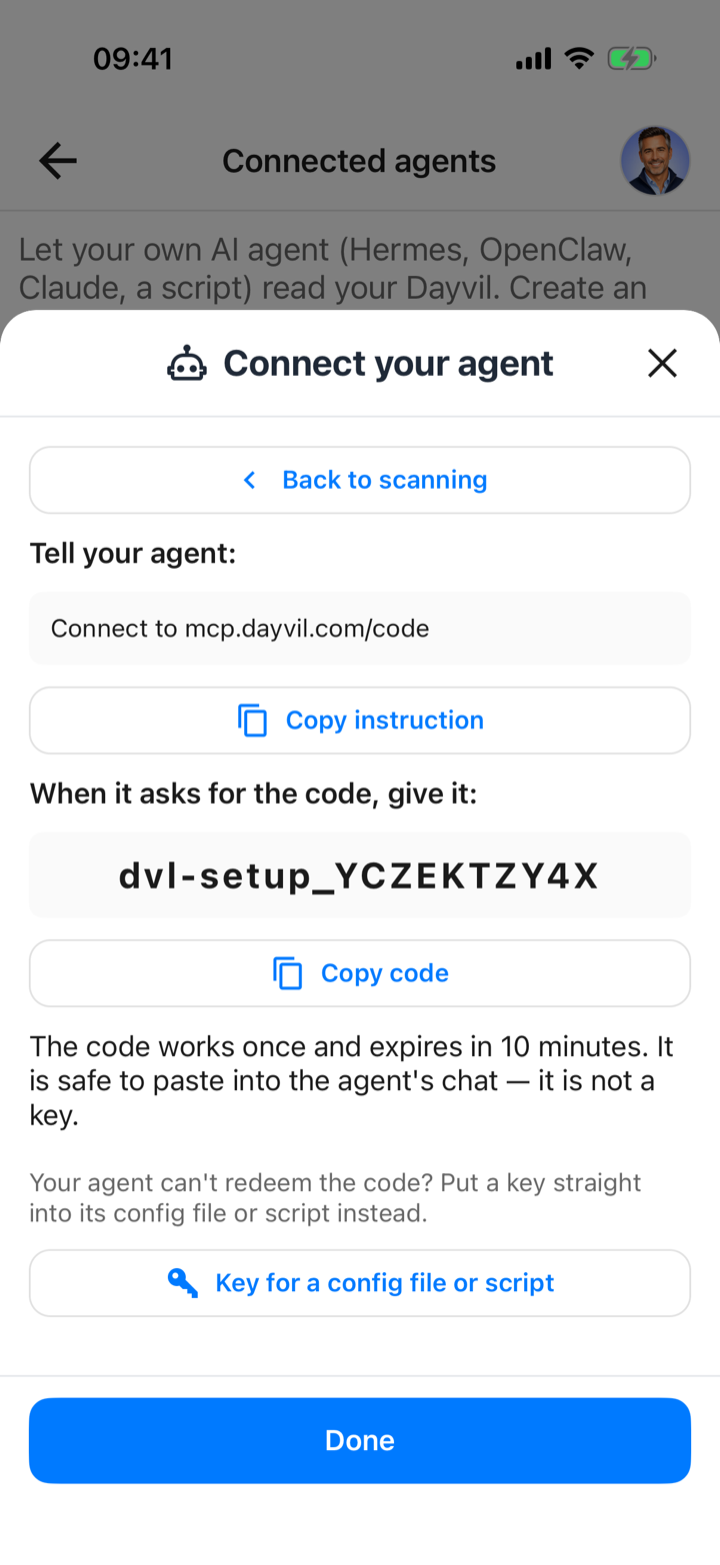
If your agent answers on the phone you are holding, its QR code is on the screen
you would point the camera at. Tap Can't scan it? instead. The sheet now
gives you a different address, “Connect to mcp.dayvil.com/code”, and a
setup code such as dvl-setup_…. Tell your agent the
address, and give it the code when it asks. The code works once and expires after
ten minutes, so it is safe to paste into a chat: it is not a key.
For a script or a client you configure by hand, tap
 Key for a config file or script. Dayvil shows a key once. Put it
in the configuration file, never in a chat, and treat it like a password: unlike a
setup code, it does not expire.
Key for a config file or script. Dayvil shows a key once. Put it
in the configuration file, never in a chat, and treat it like a password: unlike a
setup code, it does not expire.
Either way, the key itself never passes through the conversation.
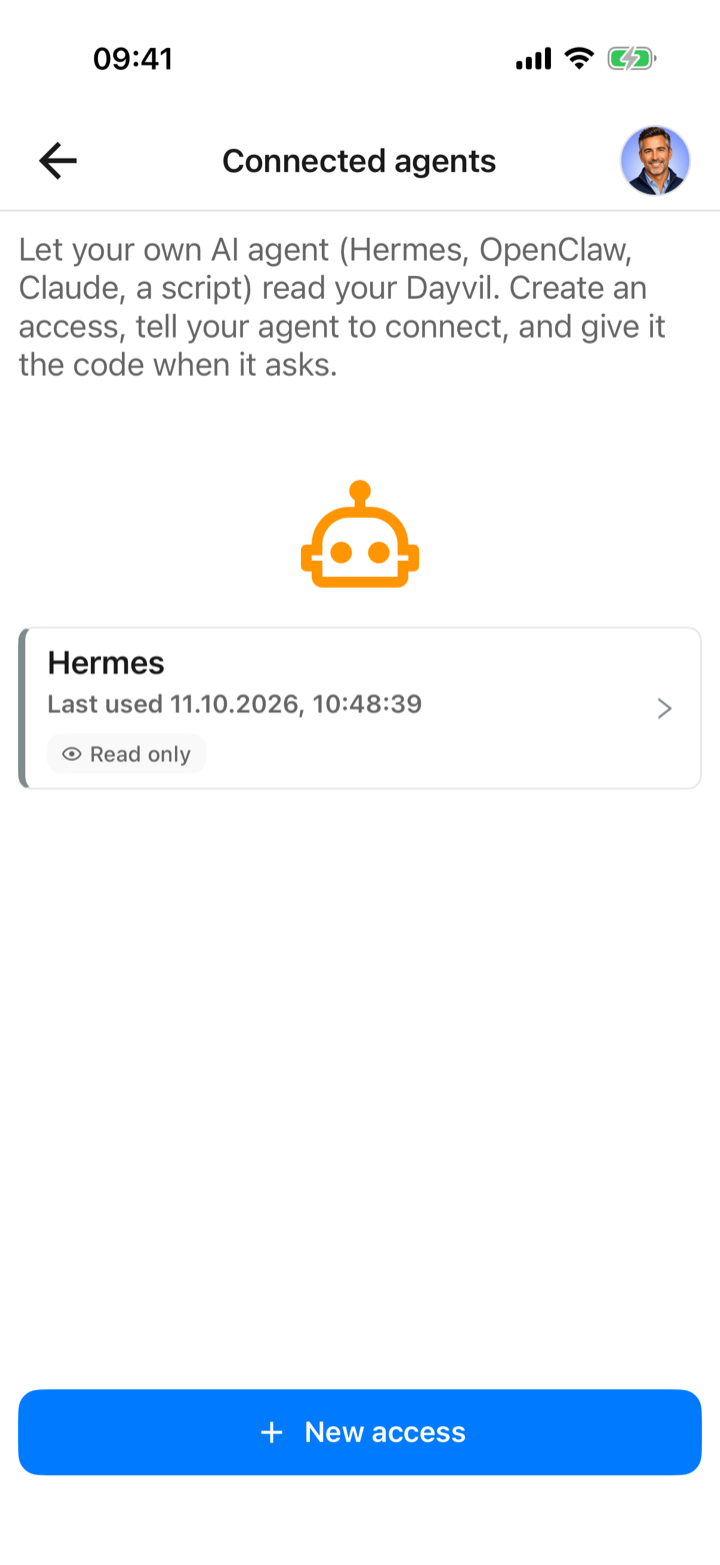
Connected agents lists each agent with its access,
Read only or Read and write, and when it
was last used. Tap one to rename it, change its access or delete it with
Delete. A deleted agent loses access within about a minute.
Each connection is separate, so removing one leaves the others alone, and deleting your
account removes them all.
An agent only ever reaches your own account, with the access you chose. Dayvil asks every agent not to send your data onward and never to diagnose, but the agent is yours: what it remembers or passes on is between you and its provider. Details are in the privacy policy.
Open Settings from your avatar menu. From top to bottom:
| Setting | What it does |
|---|---|
| Language | English or German for the whole app, including coach reports. |
| Metric units | Manage the units available for metric actions. Over thirty are built in, from ml and kcal to mmHg and mmol/L. Add your own for anything missing, for example "laps", "servings" or "IU". |
| Connected agents | Connect your own AI agent and manage what it may do. See Connect your own AI agent. |
| Action categories | Add or edit your own categories next to the built-in ones. Dayvil picks an icon from the label. |
| Allow notifications | The master switch for reminders. |
| Warn before editing a past day | Turn the "Edit past day?" confirmation back on or off. |
| Theme | Light, Dark or follow the system. |
| Measurement system | Metric or imperial. Templates convert their units and targets to match. |
| AI suggestions | Autofill of category, direction and targets while you type an action name. |
| Scan values with AI | The camera scan for metric values. |
| AI Routine Coach | Your consent for the coach. Off means no analysis is sent. |
| Status colours | Your positive, negative and unknown colours for the map. |
| Export your data | A ZIP with spreadsheet-friendly CSVs plus a complete JSON file. Save or share the ZIP using your phone's sharing menu. |
| Show hints again | Resets every in-app hint card. |
| Rate this app · Update now | Leave a review, or fetch the latest app update immediately. |
| Privacy · Terms · Imprint | The legal pages, in your app language. |
The core features are available on Free. The table below shows each plan’s features and allowances. Paid plans raise the limits, remove ads and add offline sync. Open Subscriptions from your avatar menu for current prices in your currency, monthly or yearly.
| Feature | Free | Plus | Pro |
|---|---|---|---|
| Actions, Day Map, reports, templates | ✓ | ✓ | ✓ |
| Share your own Dayvil | Unlimited | Unlimited | Unlimited |
| Dayvils you can join | 1 | 5 | 20 |
| Reminder notifications | 3 | 15 | Unlimited |
| AI coach analyses | 1 / month | 8 / month | Unlimited |
| AI photo scans | 1 / day | 10 / day | Unlimited |
| Connected AI agents | 1 | 2 | 4 |
| Agent questions | 1 / day | 20 / day | Unlimited |
| Agent logs entries for you | — | 20 / day | Unlimited |
| History an agent may read | 14 days | 180 days | Full history |
| Export history | 14 days | 180 days | Full history |
| Offline sync | — | ✓ | ✓ |
| Ad-free | — | ✓ | ✓ |
Whenever something is not available, a small badge tells you why, and the colour tells you what would change it.
A plan limit was reached. Tapping explains which plan lifts it, then offers the subscription screen.
You are offline. Sharing, subscriptions, feedback and profile need the network. No purchase changes that.
On the free plan you will occasionally see an ad between screens. Dayvil never blocks you behind one, and it steps aside for the day-complete celebration.
On the free plan, Dayvil is browse-only without a connection: you can look at your map and reports, and controls that need the network show a red lock. Plus and Pro keep working offline and sync your changes when you are back online.
Check five things: the selected date, whether a category filter is on (a label on the map shows the active filter), the action's schedule (maybe it is not due today), its Track from date, and whether it is paused. The Actions tab tags paused actions.
Open the action and check that Notify me is on and the times are right, that the action is scheduled today and not paused, and that you are within your plan's reminder allowance. Then check that notifications are allowed for Dayvil in your phone's settings, and that Focus or Do Not Disturb is not silencing them.
It is a Single Check, Checklist or Checkpoints action on a past day with nothing logged, so Dayvil counts it as not done. Log the value and the stripes go away. Metric and Time actions never stripe; they stay neutral until you log something.
You have reached the earliest "Track from" date of your actions. Edit an action and move its Track from date back to open up earlier days for that action.
No. The streak counts days on which you logged anything. Missing a day entirely breaks it, and "Recovery rate" on the Streaks tab tracks how quickly you bounce back.
Create it as a Metric with "Lower is better" (for example cigarettes, target zone 0 to 3) or a Single Check with "Better to avoid". Zero stays neutral until you confirm it, so forgetting to log is never mistaken for success.
Not in one action, but a Metric can hold several numbers (blood pressure plus pulse) and a Time action several windows (wake-up and bedtime). Create two actions if you need both a number and a time.
You are probably viewing someone else's shared Dayvil, or you are offline on the free plan. Tap the avatar in the header and choose Switch to me, or reconnect.
Make sure you told it just the address mcp.dayvil.com. If it cannot show you a QR code you can scan, tap Can't scan it? and give it the setup code when it asks. A setup code works once and expires after ten minutes, so create a new access if it has run out. If your agent says your question allowance is used up, Free includes one agent question a day and the count resets the next day.
Each one shows at most three times and never twice in the same session. Settings → Show hints again brings all of them back.
Use Feedback from your avatar menu, or the contact form on this site. Your Support ID in Profile → Advanced helps us find your account without needing an email.
Add one action today, log it, and let the map do the rest. Come back to this page whenever a screen needs explaining.